

Windows 10 & 11 · Home / Pro
Activate an existing Windows installation with your product key. If Windows asks for an Installation ID, use the CID steps below.
1. Get the key for your Windows edition
Check whether the PC has Windows Home or Pro in Settings → System → About. Your key must cover that edition. This guide does not install Windows or walk through a Home-to-Pro upgrade.
Have the product key supplied with your order ready. For a fresh installation, follow the USB installation guide.
2. Try online activation first
Connect the PC to the internet and open the Activation page:
- Windows 11: Settings → System → Activation.
- Windows 10: Settings → Update & Security → Activation.
Choose Change product key or Change. Enter your 25-character key, then follow the on-screen prompts. If the status becomes Active or Windows is activated, you are finished.
3. Find your Installation ID, if required
If online activation does not complete, use the option available on your Activation page. The wording varies by Windows build:
- Newer interface: select Automated Help beside Product Activation Portal.
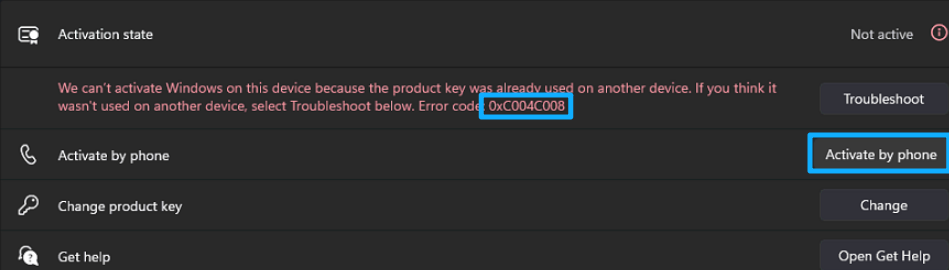
- Earlier interface: select Activate by phone, choose your actual country or region if asked, then continue to the Installation ID.
Microsoft now directs this offline flow to its Product Activation Portal. Do not call the number in the older screenshot. If your options differ, use Microsoft’s current activation instructions.

4. Capture all nine IID groups
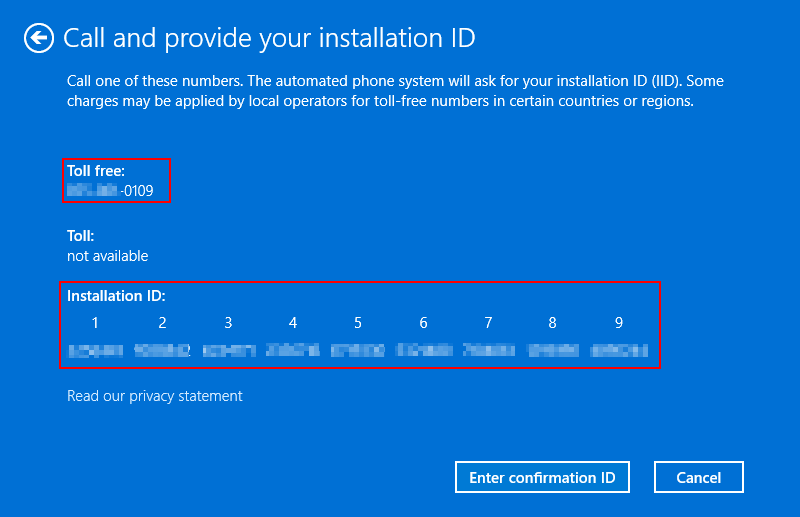
The Installation ID (IID) belongs to this Windows installation. It is different from the product key. Keep this activation window open while you follow the activation steps.
- Find the nine groups labelled 1–9.
- Take a clear screenshot or photo that includes every digit, or copy the complete IID as text.
- Keep leading zeroes. Do not include the group labels, phone number or product key.
5. Get the Confirmation ID
Continue in the Microsoft Product Activation Portal. Enter the Installation ID for the device you are activating and follow Microsoft’s instructions. The result displays the confirmation digits for fields A–H.
6. Enter A–H and check the status
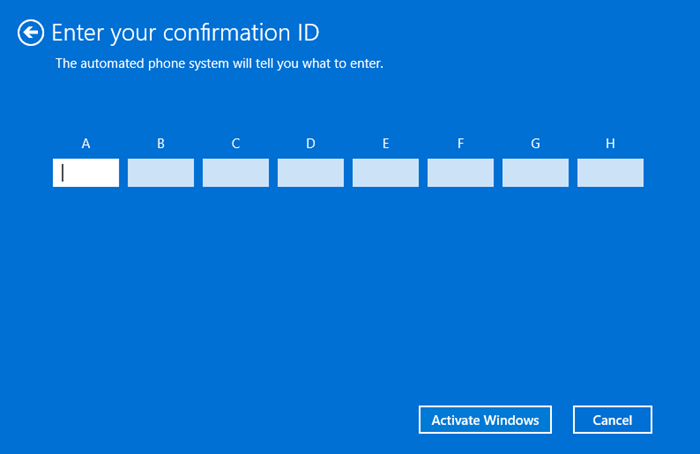
- Return to the same PC and activation window. Select Enter confirmation ID.
- Enter the returned groups in fields A, B, C, D, E, F, G and H, in order. Preserve every leading zero.
- Select Activate Windows or Next, as shown on your screen.
Open Windows Activation settings again and confirm Active or Windows is activated. Receiving a CID alone does not confirm that Windows has activated.
If something does not match
- My key is for a different edition.
Stop and check the supplied product against the installed edition. A Home key and a Pro installation do not match. See Microsoft’s licence and activation guidance.
- I see 0xC004C008.
This can indicate that a key has reached its device or activation limit. Record the exact message and ask your supplier to check the licence. A CID is not a guaranteed fix. See Microsoft’s activation error reference.
- There is no Activate by phone option, or SLUI 4 does not open.
Use Automated Help if available, or the Microsoft instructions linked in step 3. SLUI is not available on every current build. Do not keep reopening an unsupported flow.
- The CID was returned, but activation still fails.
Check the edition and the IID/CID pairing. If you changed the key, reinstalled Windows or moved to another PC, do not assume an old CID applies. Save the exact error screenshot and ask your seller for help.