
Installing Windows 11
The screenshots below are a Windows 10 reference. Windows 11 setup and account screens differ; they are not shown as Windows 11 screenshots.
- Back up the customer's files and confirm the target PC meets Microsoft's requirements.
- Use the Windows 11 download page to prepare installation media for the PC, then boot from that USB drive.
- Follow the Windows 11 setup prompts and select the edition covered by the licence. Identify the correct destination drive before changing its partitions.
- After setup, open Settings and search for Activation to check the licence status.
Windows 10 reference walkthrough
Use the following images to understand USB booting and the older setup flow. Screen labels and account options depend on the Windows version and edition.
Method 1: Boot from USB via Boot Menu
Enter Boot Menu
- Insert the bootable USB drive
- Restart your computer
- Immediately press the Boot Option key repeatedly
Common keys: F12, Esc, F8
Select USB Device
- Use ↑ / ↓ keys to select your USB device
- Move it to the first boot option (if required)
- Press Enter or F10 to boot
Brand Examples
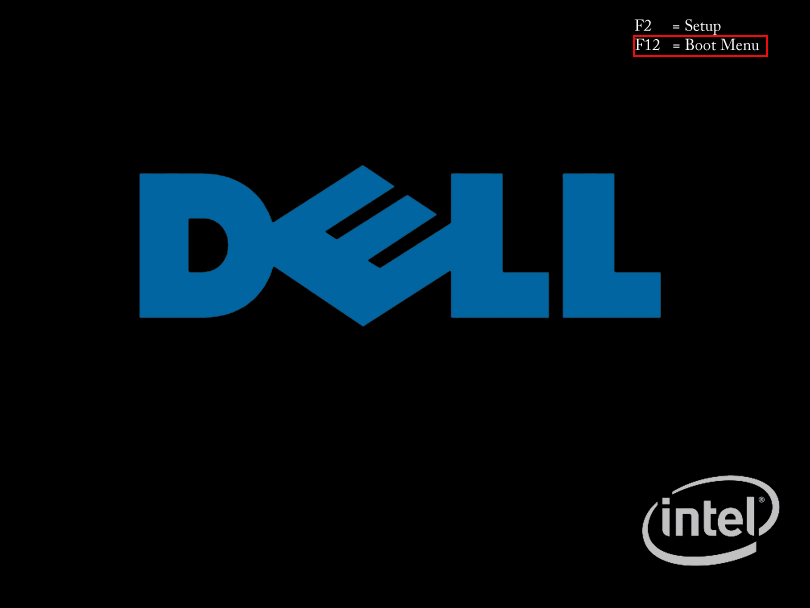
- Dell: Press F12 → USB Storage Device
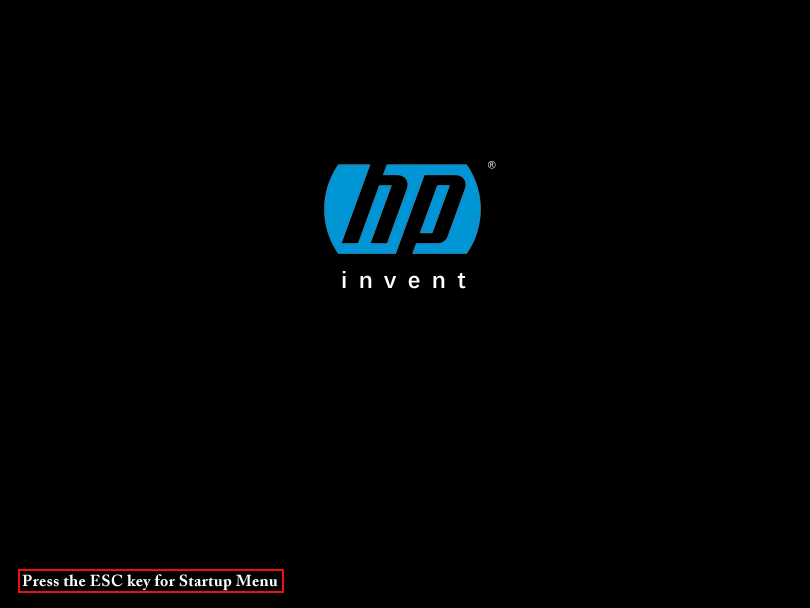
- HP: Press Esc → F9 → USB drive
Install Windows with a USB drive — instruction image — this image is unavailable from the original tutorial.
Method 2: Boot from USB via BIOS / UEFI
UEFI – EZ Mode
- Insert USB and restart
- Press BIOS key (Del, F2, F12)
- In EZ Mode, press F8 (Boot Menu)
- Select USB flash drive
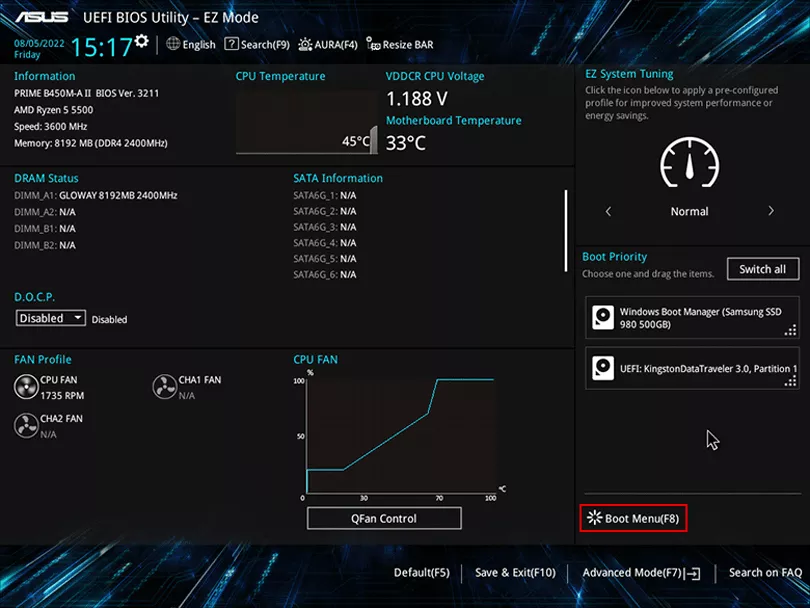
Install Windows with a USB drive — instruction image — this image is unavailable from the original tutorial.
UEFI – Advanced Mode
- Press F7 to enter Advanced Mode
- Open the Boot tab
- Set USB drive as first boot option
Install Windows with a USB drive — instruction image — this image is unavailable from the original tutorial.
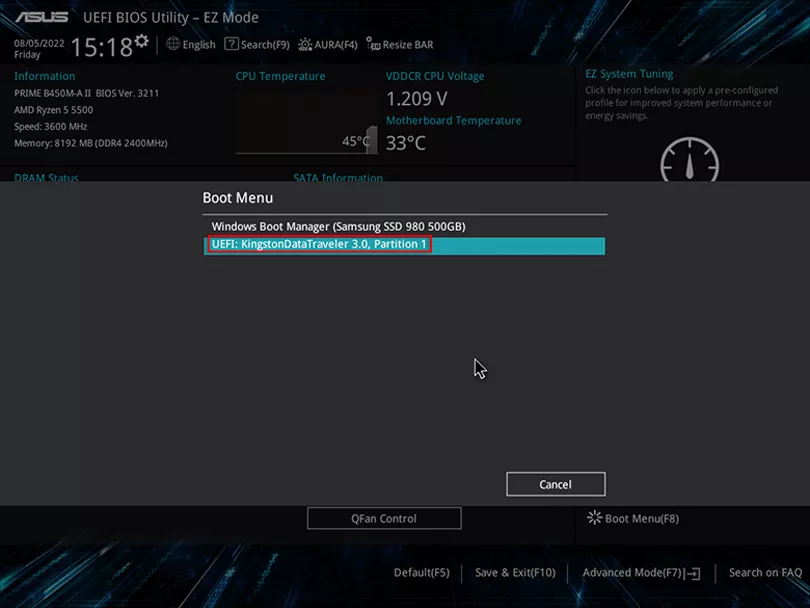
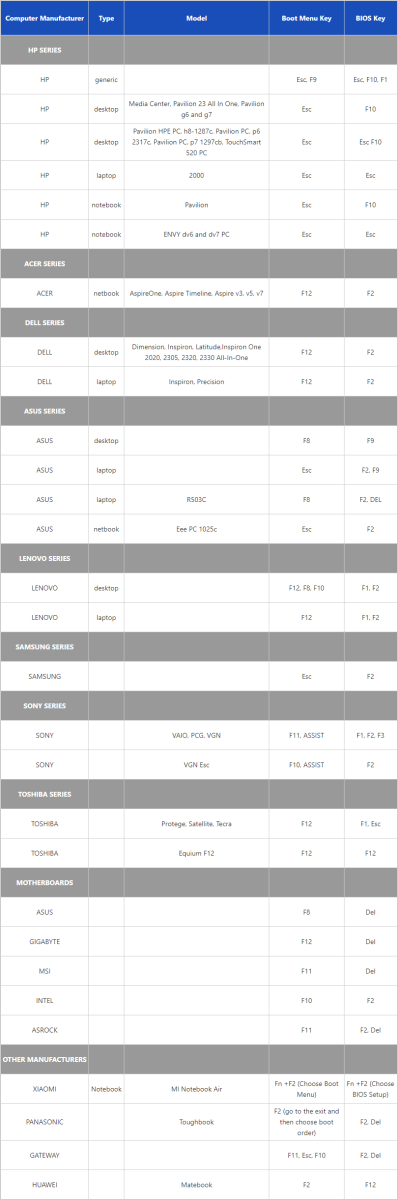
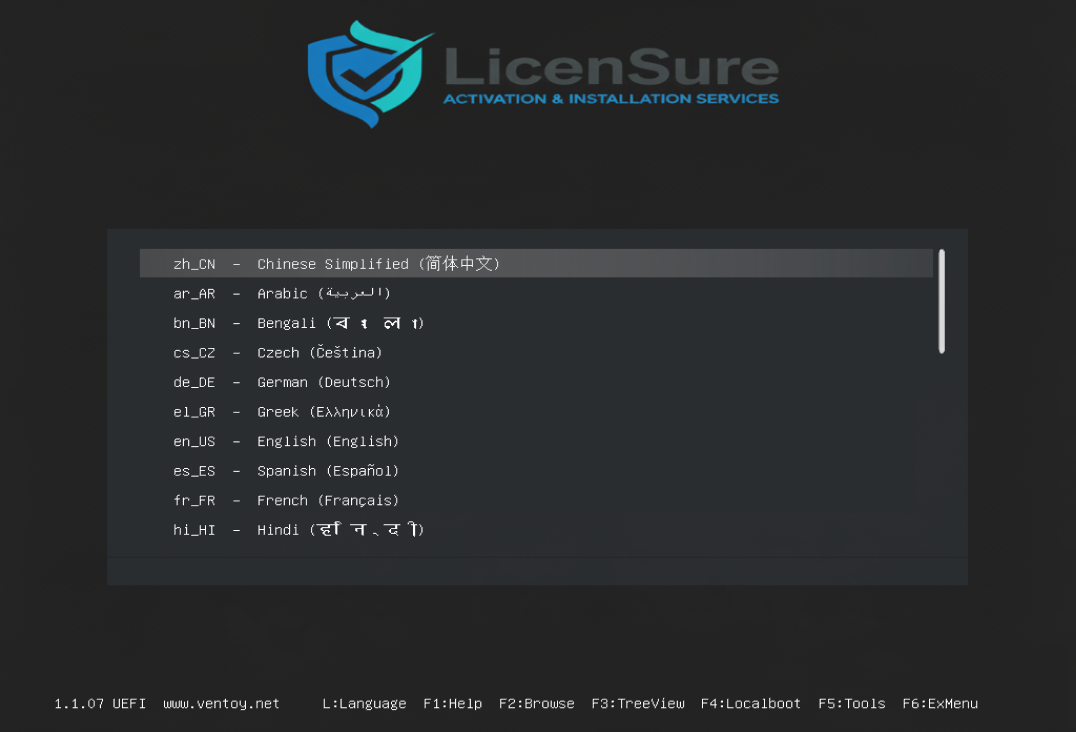
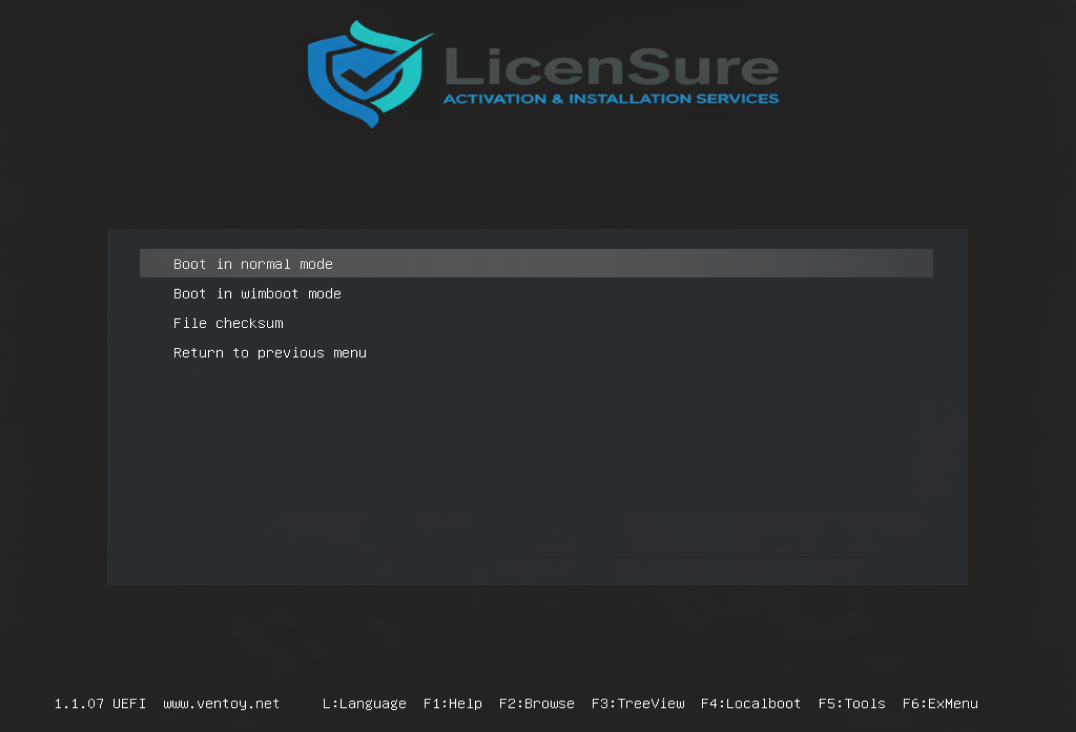
Enter USB System
After booting from USB:
- Press L to select language
- Press Esc to go back
- Select the Windows version to install
- Press Enter to boot in normal mode
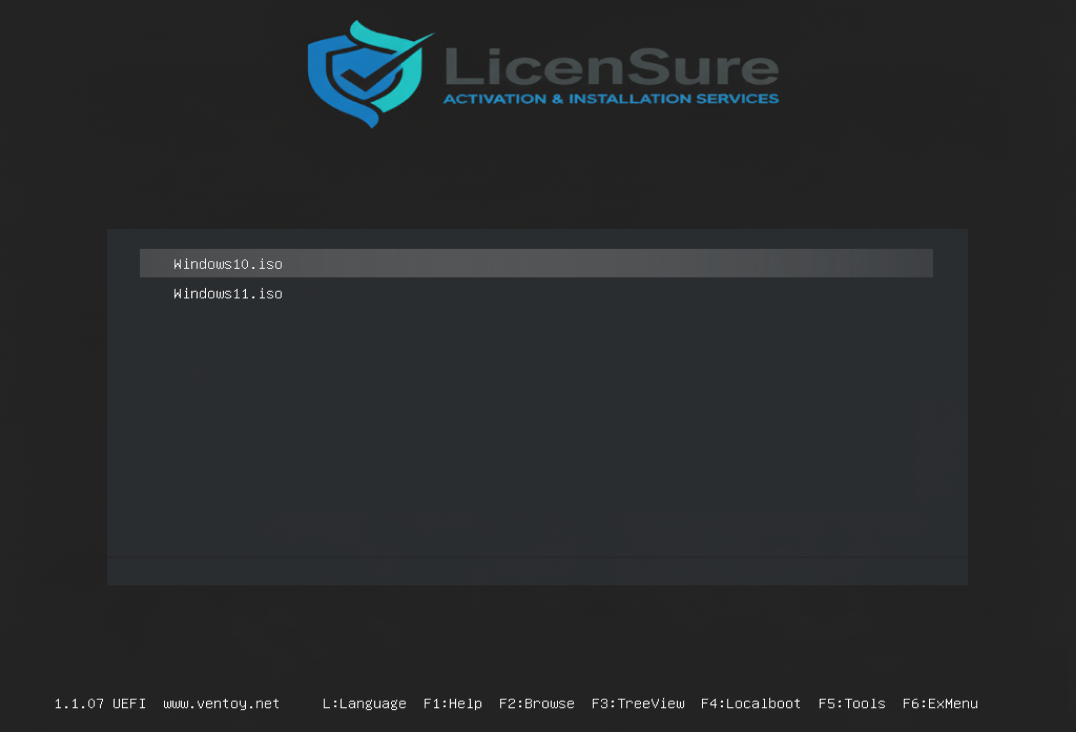
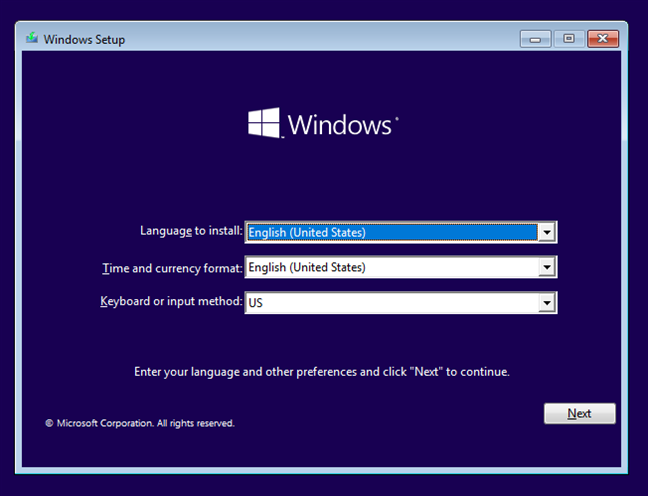
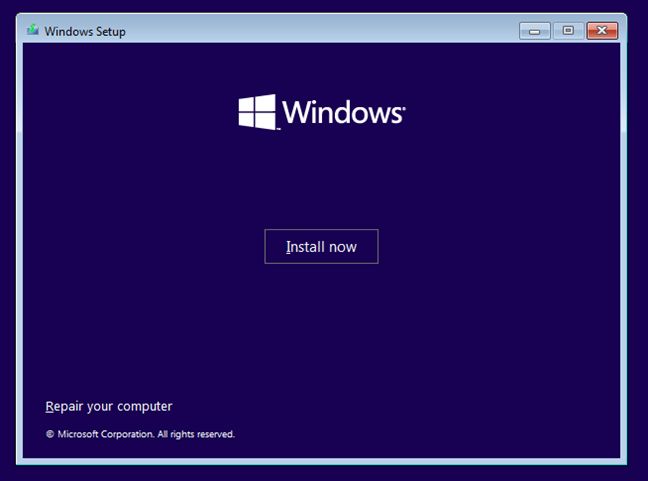
Step 1: Start Windows Setup
- Click Install Now
- Choose I don’t have a product key
- In this Windows 10 example, choose the edition covered by your licence. Do not select an edition just because it appears in the screenshot.
Step 2: Disk Partition & Installation
On the disk selection screen:
- New PC: Select Unallocated Space → Next
- Existing system: Back up the files first. Confirm the target drive by its capacity and partitions, and disconnect unrelated drives if needed. Only delete partitions when you intend a clean installation on that verified drive. Deletion permanently removes the data on those partitions.
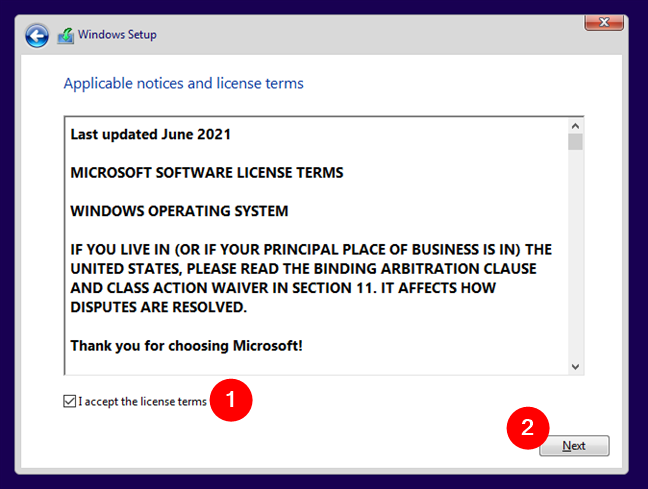
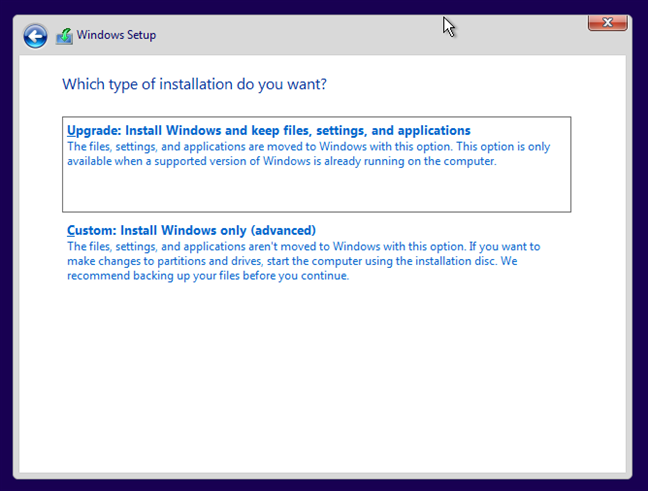
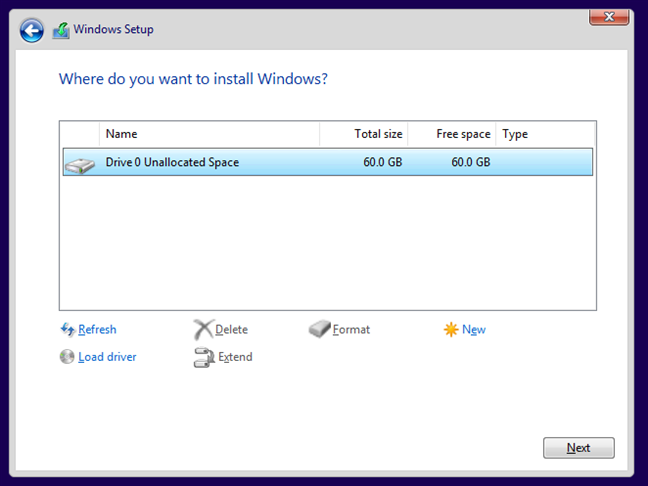
Windows will now copy files and restart automatically.
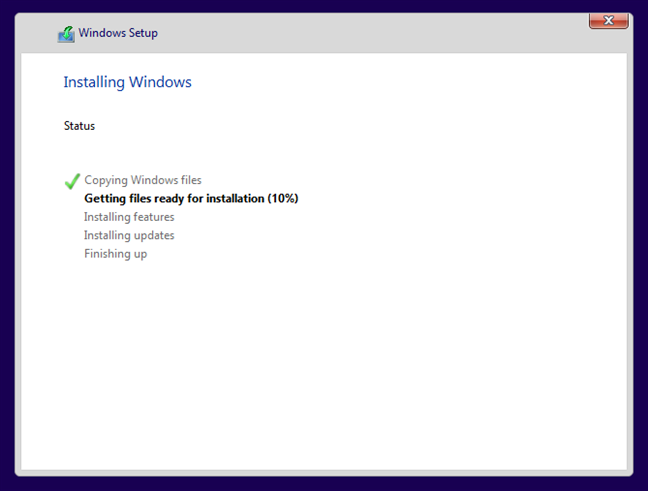
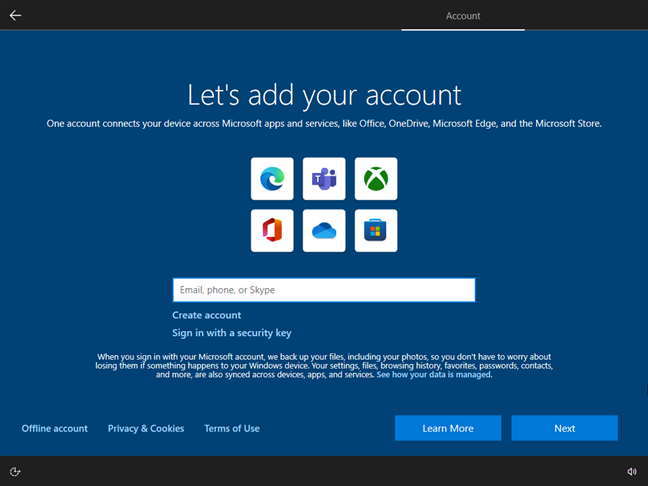
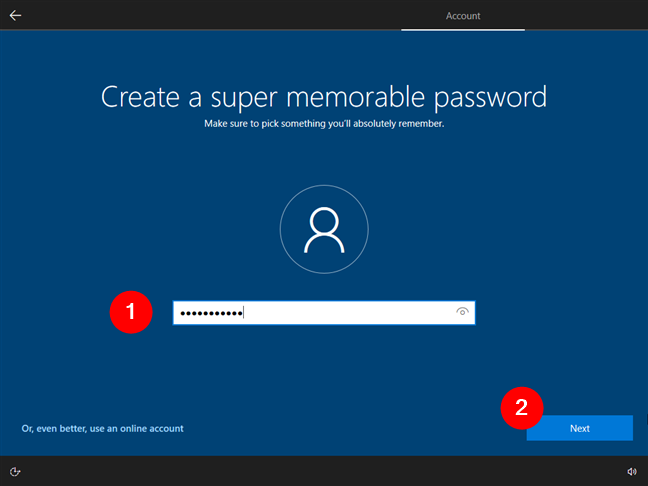
Windows 10: Account setup example
- Select Offline Account
- Choose Limited Experience
- Create a local username and password
Windows 10: Final setup
- Choose privacy settings (you may turn all off)
- Wait for setup to complete
- Windows desktop will appear
Step 5: Activate Windows
With Product Key
Go to:
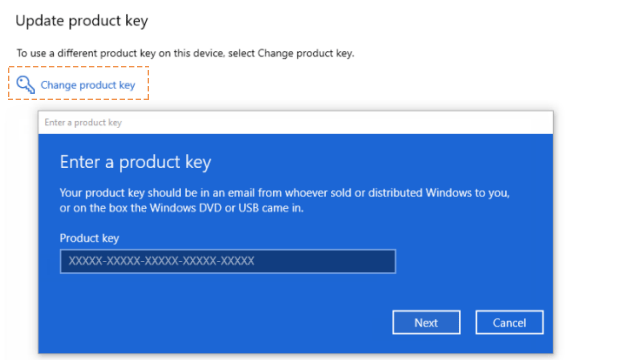
Windows 10 example: Settings → Update & Security → Activation → Change product key