

Step 1: Download Office Tool Plus
Office Tool Plus is required to install Project / Visio volume versions.
Download Office Tool Plus
Requirements:
• Windows 10 / Windows 11
• Run as Administrator
• Internet connection required
Extract & Run
- Right-click the downloaded archive
- Select Mount or Extract
- Run Office Tool Plus.exe as administrator
Step 2: Deploy Project or Visio
Select Product
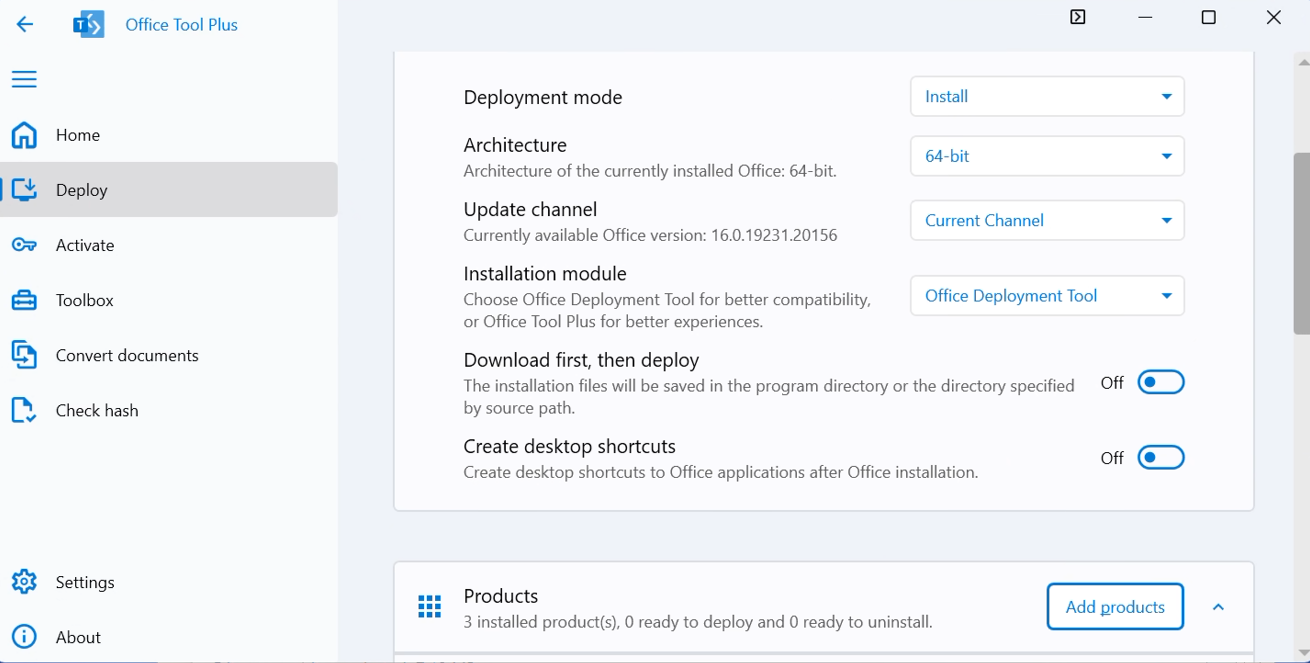 Open Deploy
- Click Add Products
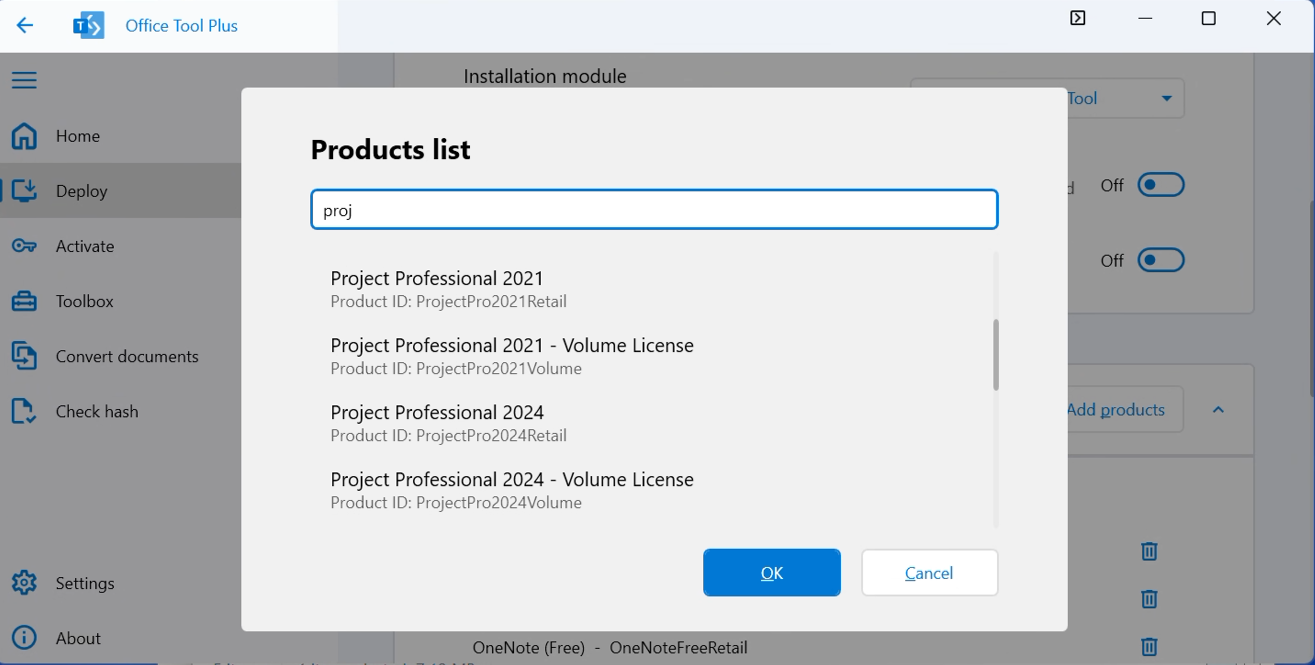 Select one of the following:
- Project Professional 2016 / 2019 / 2021 / 2024 (Volume)
- Visio Professional 2016 / 2019 / 2021 / 2024 (Volume)
Important:
Make sure the architecture and channel match your existing Office installation.
Start Deployment
Click Start Deployment and wait for installation to complete
(usually 10–30 minutes).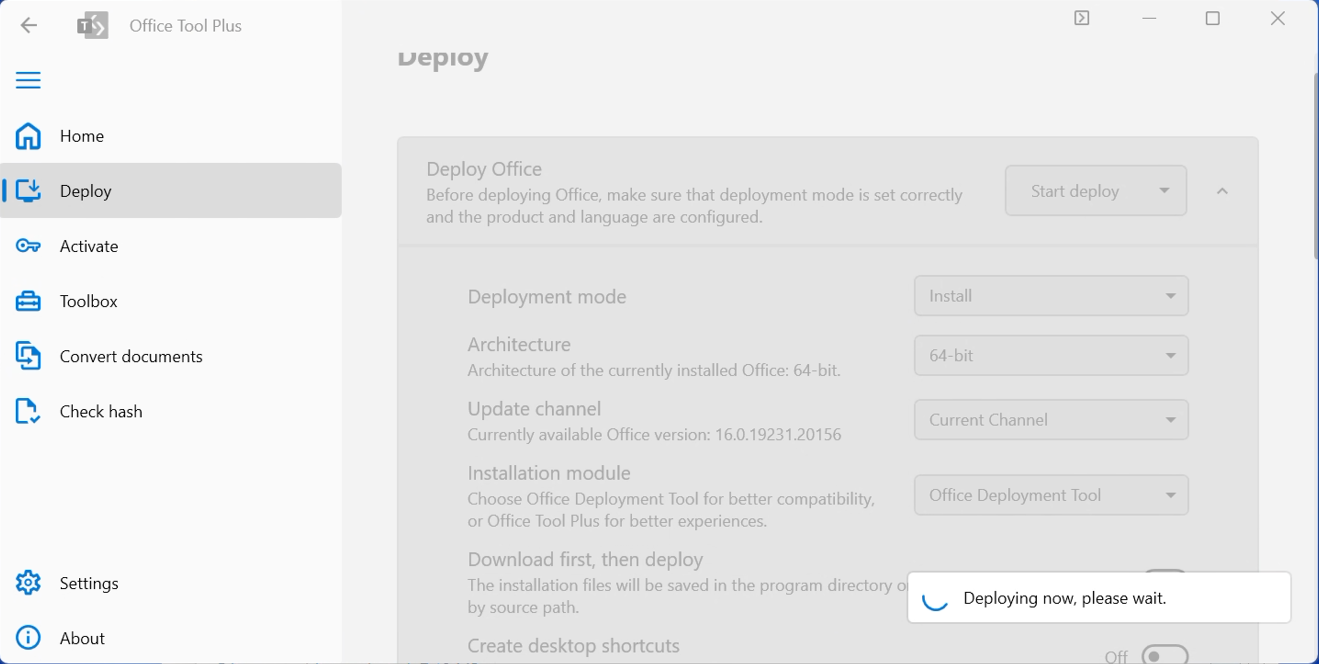
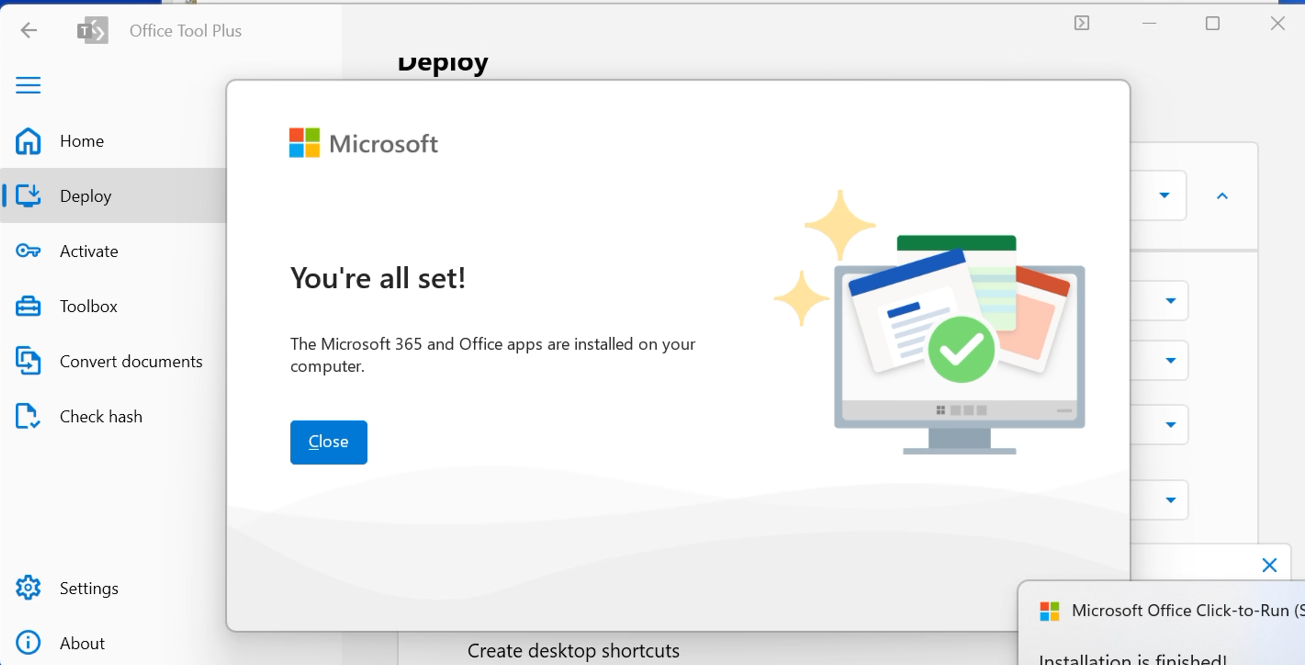
Do not close Office Tool Plus or disconnect from the internet.
Step 3: Activation & Verification
Open Project / Visio
- Open Project or Visio
- Accept the license agreement
- Select I don’t want to sign in (optional)
Enter Product Key
Go to File → Account
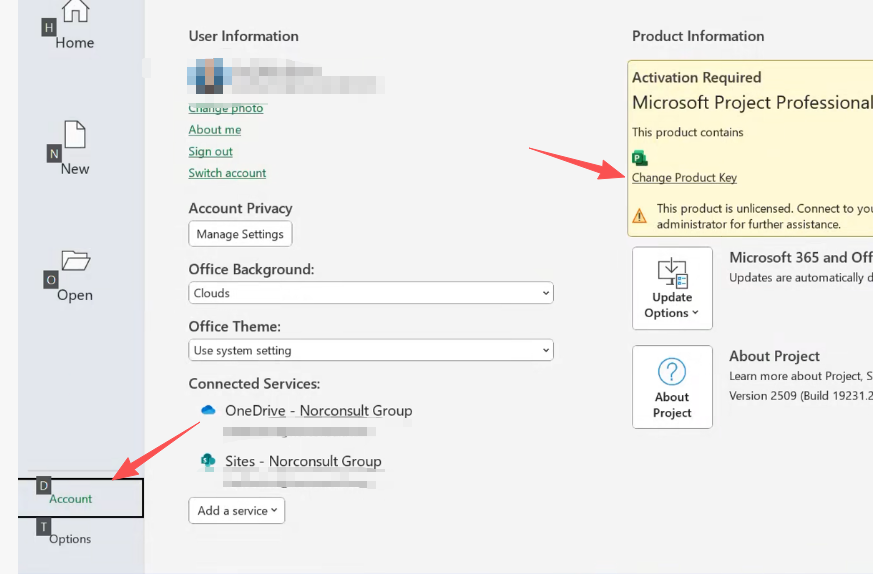
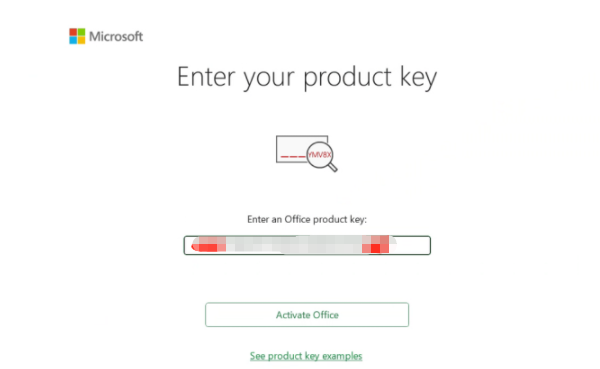
Click I have a product key or Change product key
Enter the key, then close and reopen the app.
Telephone Activation
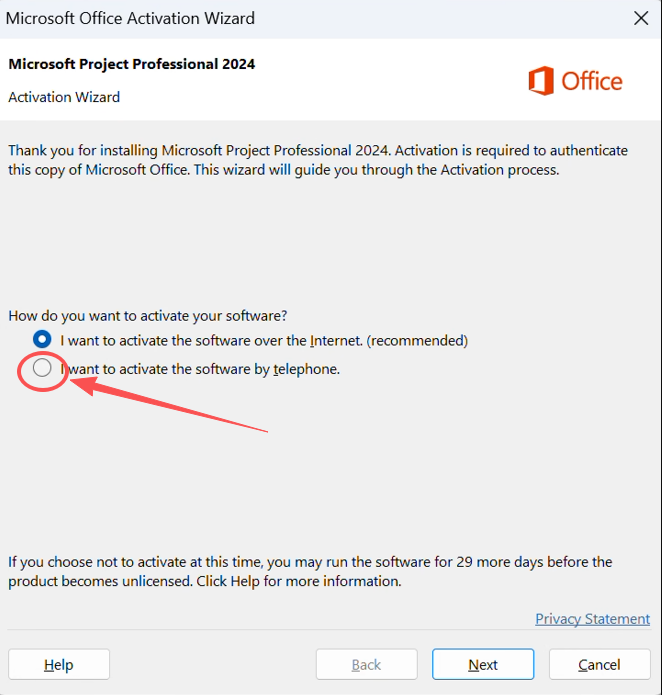
Select Telephone activation:
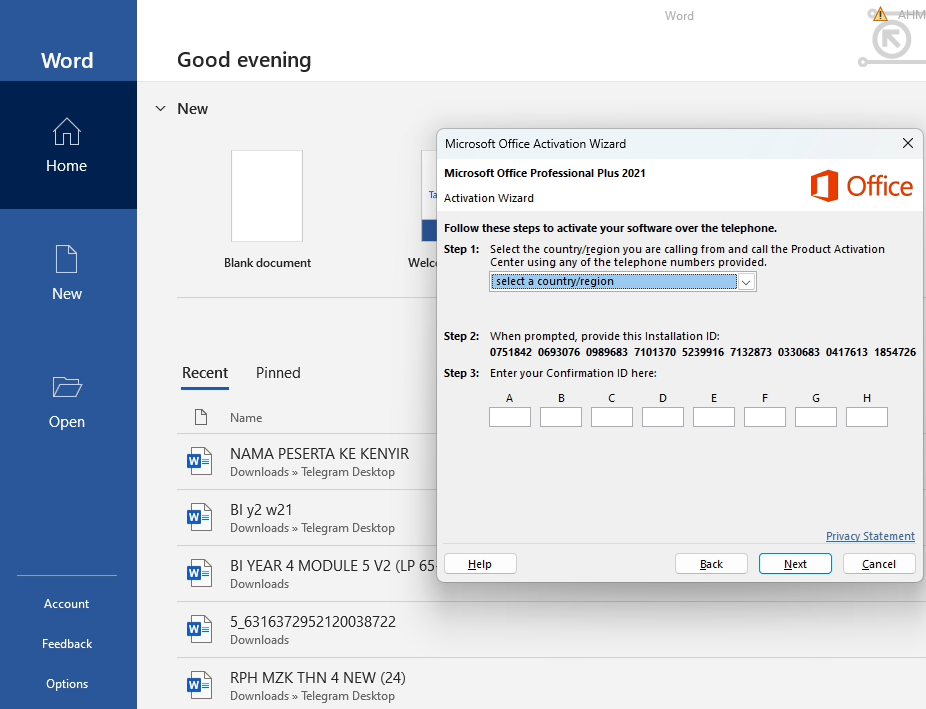
- Select country: Malaysia
- You will see the Installation ID
- Open the Microsoft Product Activation Portal and enter the installation ID.
-
Enter the confirmation ID, and it will show activation successful:
Statement:
If you encounter any error messages, check the exact error and contact your seller.
Finish Activation
- Product name: Microsoft Project / Visio Professional Plus
- Status: Activated