

Step 1: Open an Office App
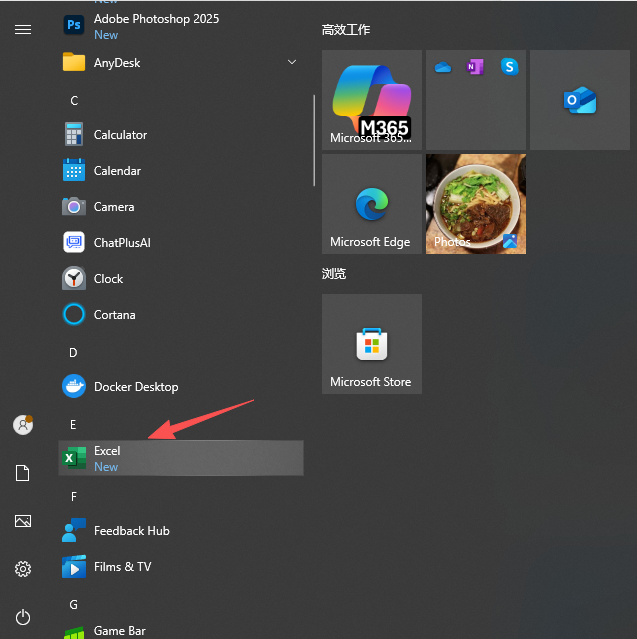
Open Microsoft Word or Excel
from the Start menu.
Step 2: Go to Account Page
In the Office app:
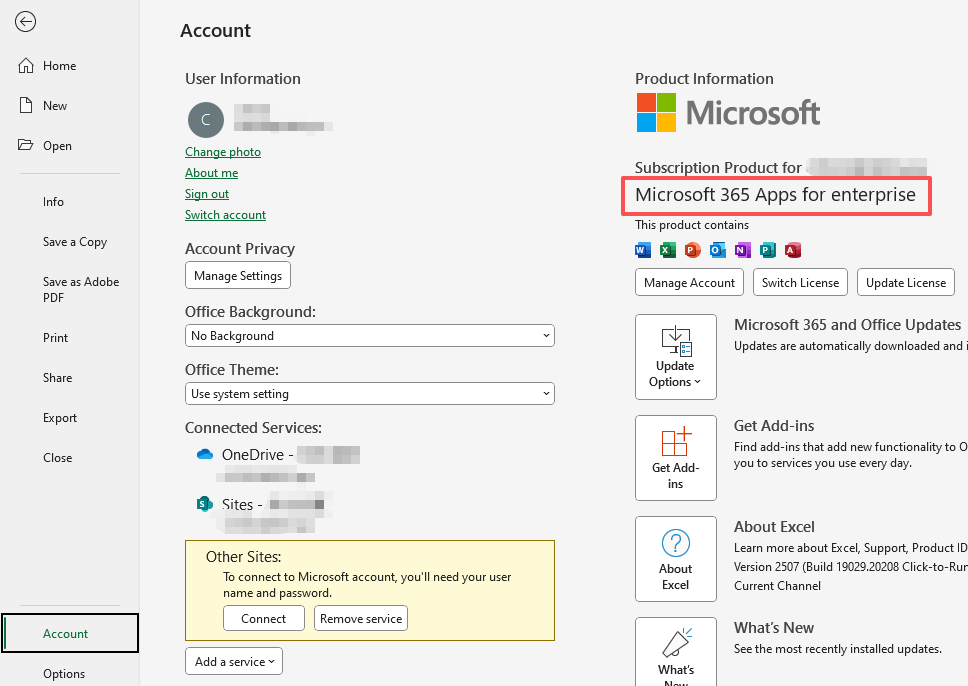
- Click File
- Select Account (or Office Account)
Step 3: Check Product Information
Under Product Information, you can see:
- Office edition (e.g. Office 2019 Professional Plus)
- Microsoft 365 Apps or Volume License
- Build number and update channel
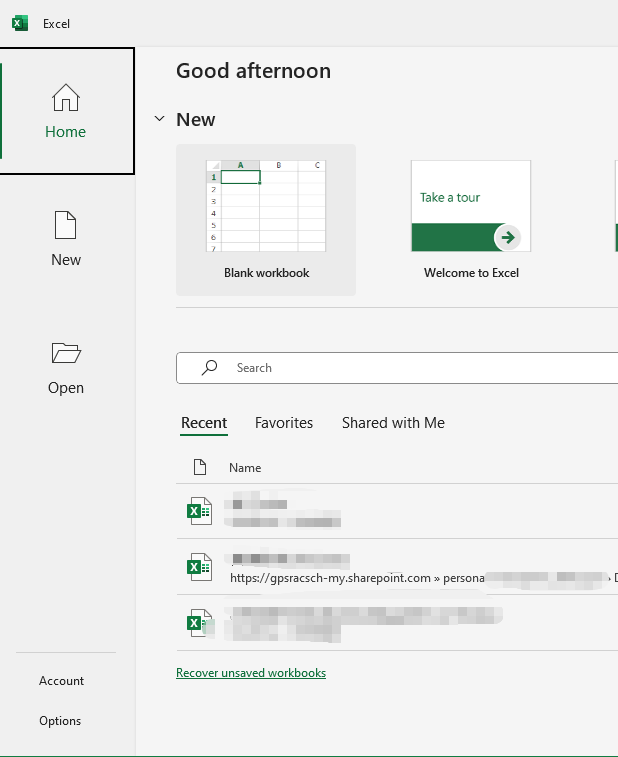
Click About Word or About Excel
to view the full version and build details.
Alternative Methods
Method 1: Control Panel
Go to:
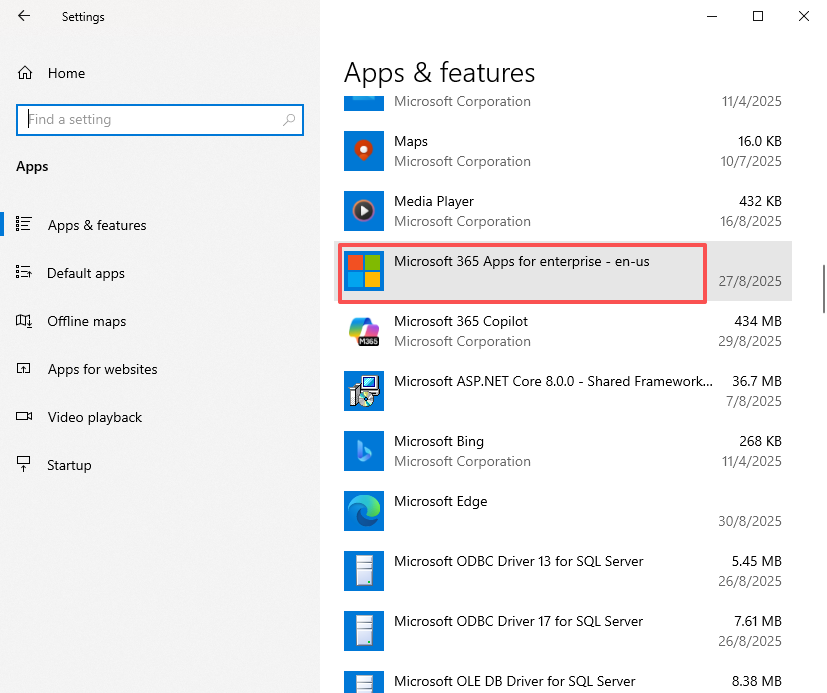
Control Panel → Programs → Programs and Features
Find Microsoft Office in the list to see the version.
Method 2: Winver (Windows Version Reference)
Press Win + R, type winver, and press Enter.
This shows your Windows version (not Office),
but is useful for compatibility checking.