

Step 1: Download Office Installation File
Please download the version you need:
Download Office 2021 Professional Plus
Tip:
• Choose only ONE version to install
• Windows 10 / Windows 11 recommended
After download completes:
Right-click the file → Select Mount
or use 7-Zip → Extract
Step 2: Install Microsoft Office
Run Setup
Open the mounted or extracted folder,
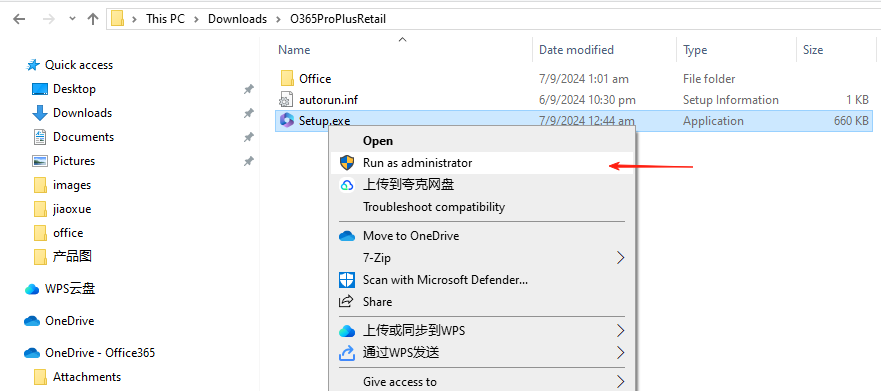
Right-click setup.exe → Run as administrator
Important:
Please do not open any Office apps during installation.
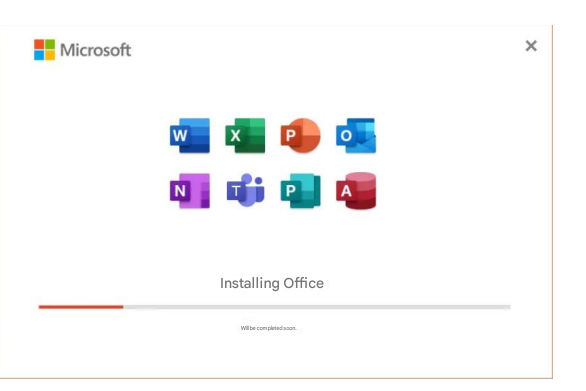
Wait for Installation
Installation will take about 15–30 minutes.
Please wait patiently.
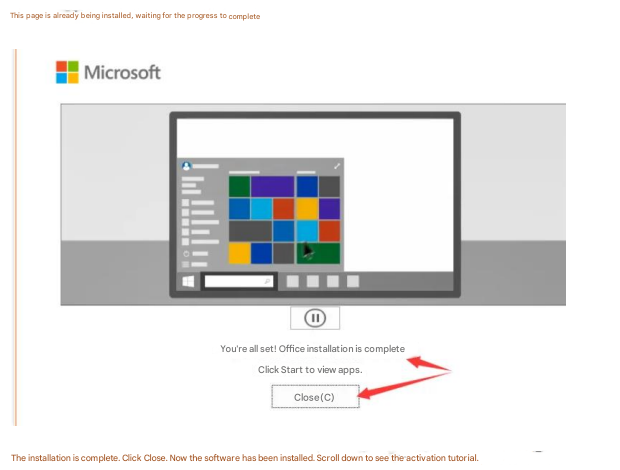
When you see Installation Completed, click Close.
Step 3: Activation & Verification
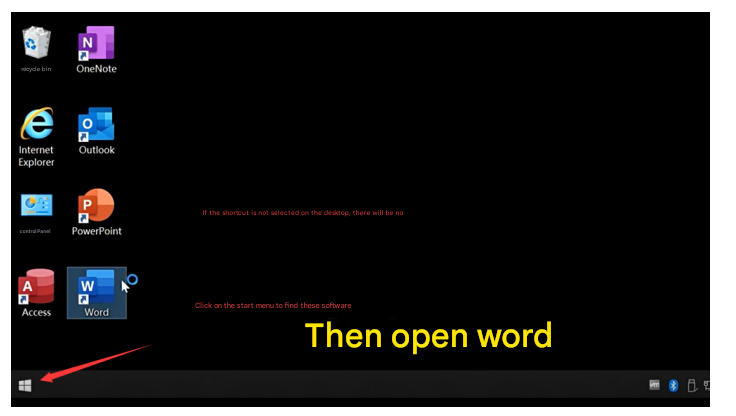
Open an Office App
- Open Word or Excel
- Accept license agreement
- Select I have a product key
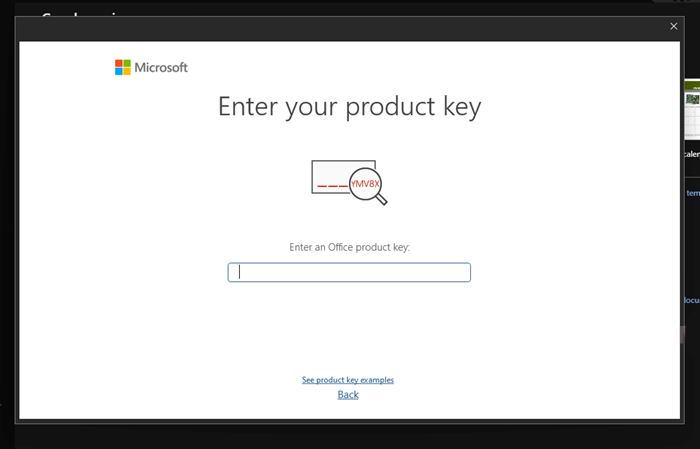
After entering the key, close and reopen the app to see the activation wizard
Telephone Activation
- Select country/region: Malaysia
- You will see 9 groups of numbers
- Take a screenshot or photo
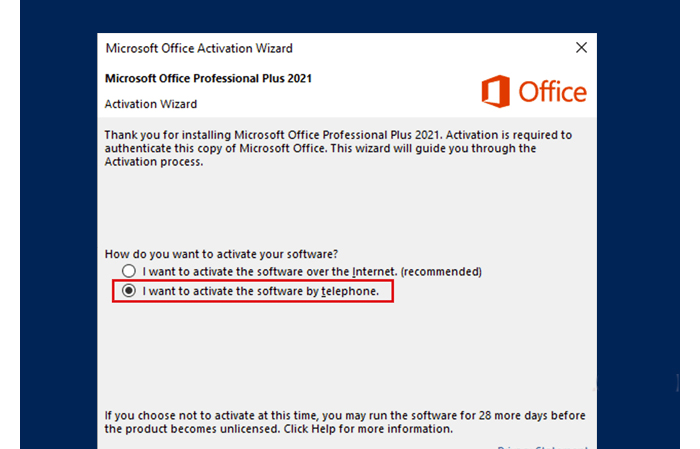
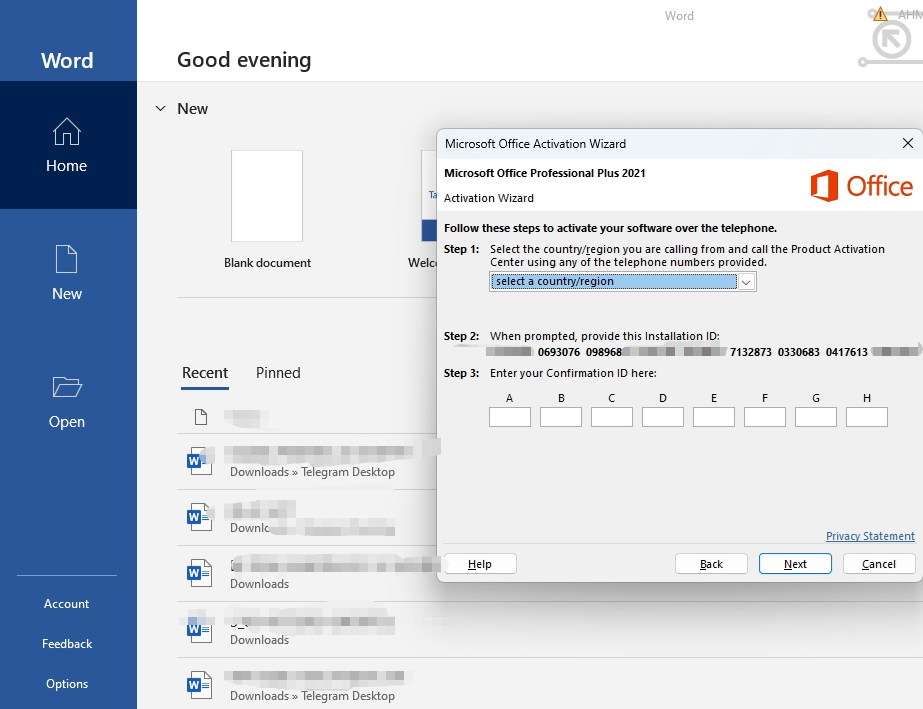
- Use the Microsoft Product Activation Portal to request the confirmation ID, then enter its A–H groups in Office.
Finish Activation
- Enter confirmation ID
- Restart the Office app
- Status shows Activated
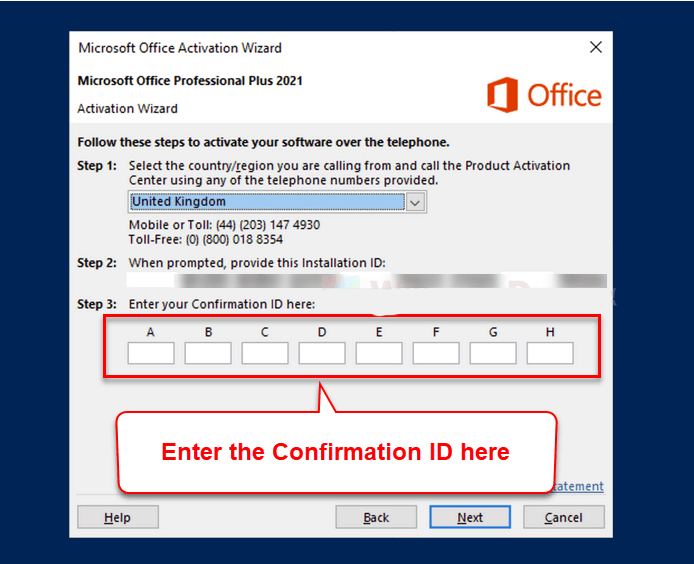
Activation completed successfully!