

Prerequisite: Leave Previous Family Group
If you are already in a Microsoft Family Group, you must leave the previous group before joining our subscription.
How to leave Family GroupIf you received a direct invitation link via chat or message, please follow these steps:
Step 1: Open the Link & Sign In
Click on the direct invitation link provided to you. You will be redirected to the Microsoft 365 Premium joining page.
Click the green “Sign in” button and log in with your personal Microsoft account.
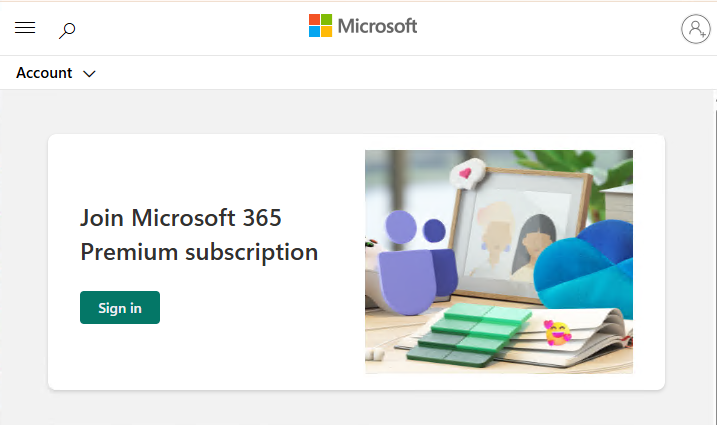
Step 2: Accept the Invitation
After logging in, you will see a prompt indicating you have been invited to use a Microsoft 365 Premium subscription.
Click the green “Join now” button to proceed.
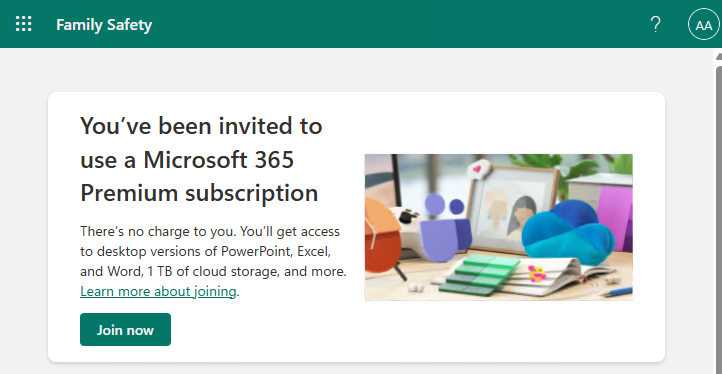
Step 3: Confirmation
Once joined successfully, a “Congratulations” screen will appear, confirming your access to the benefits and storage.
Click “Start using Microsoft 365 apps” to manage your account.
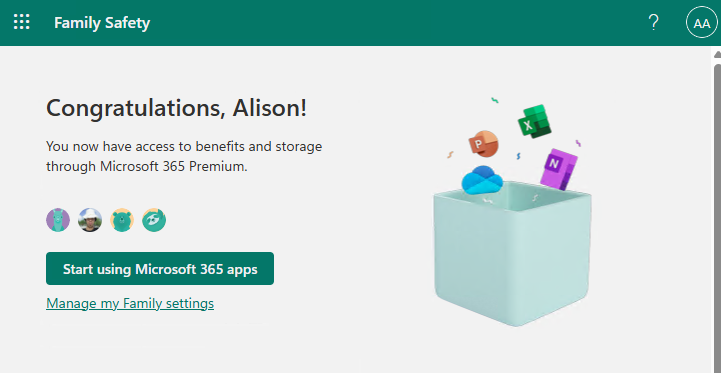
Step 4: Install Office Apps & Verify Storage
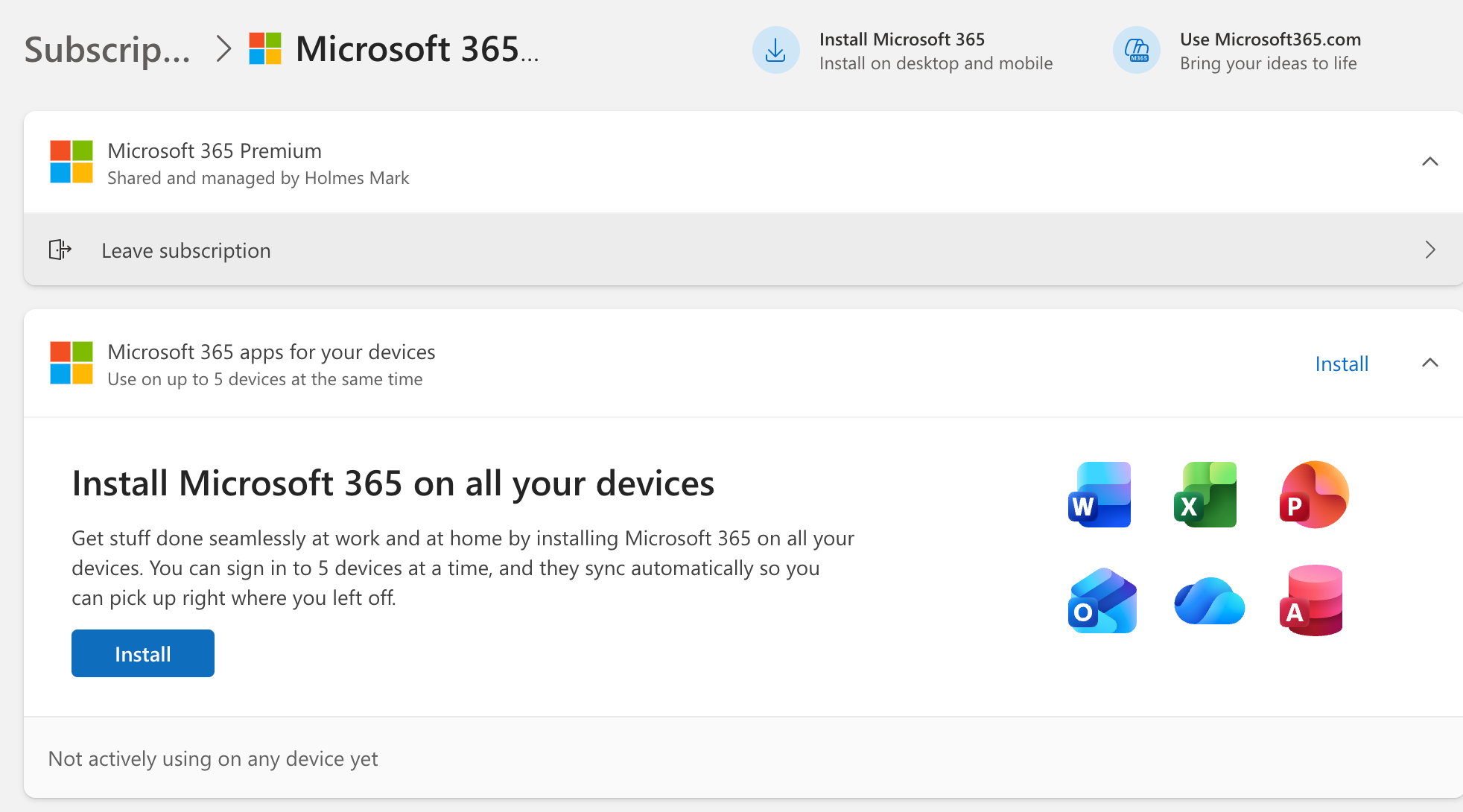
On your Microsoft account dashboard, you will see your active Microsoft 365 Premium subscription.
Click “Install” to download the desktop apps on your devices. Your 1TB cloud storage is now active as well.
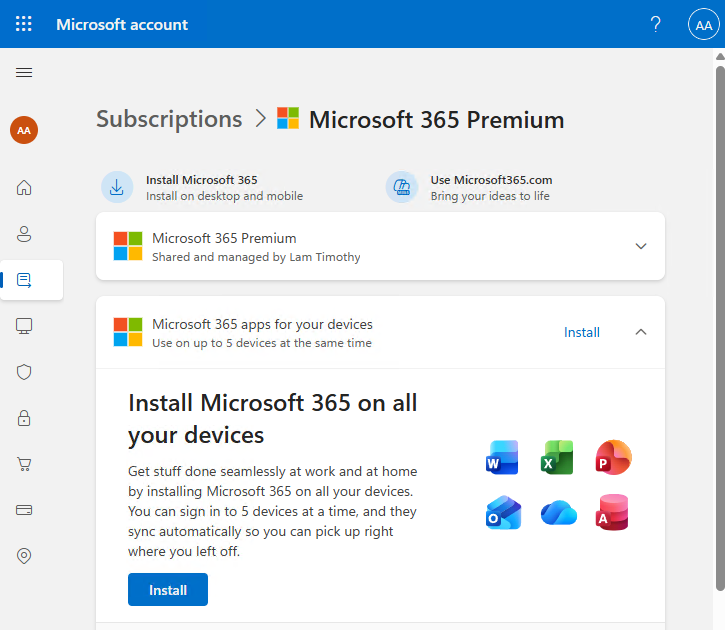
If you received an invitation directly to your inbox, please follow these steps:
Step 1: Check Your Invitation Email
Open your inbox, and you will find an invitation email from Microsoft Family Safety. Click to open it.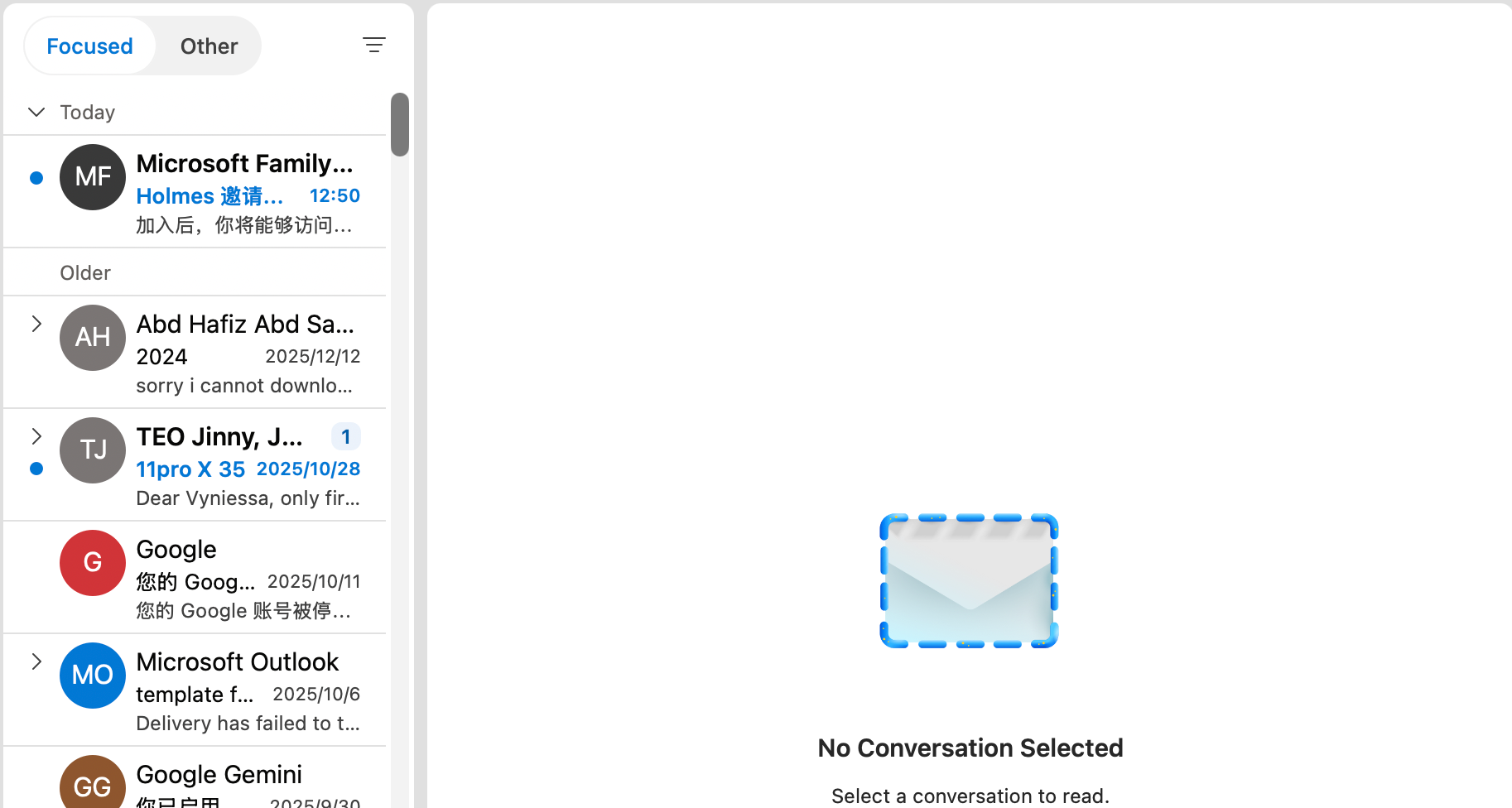
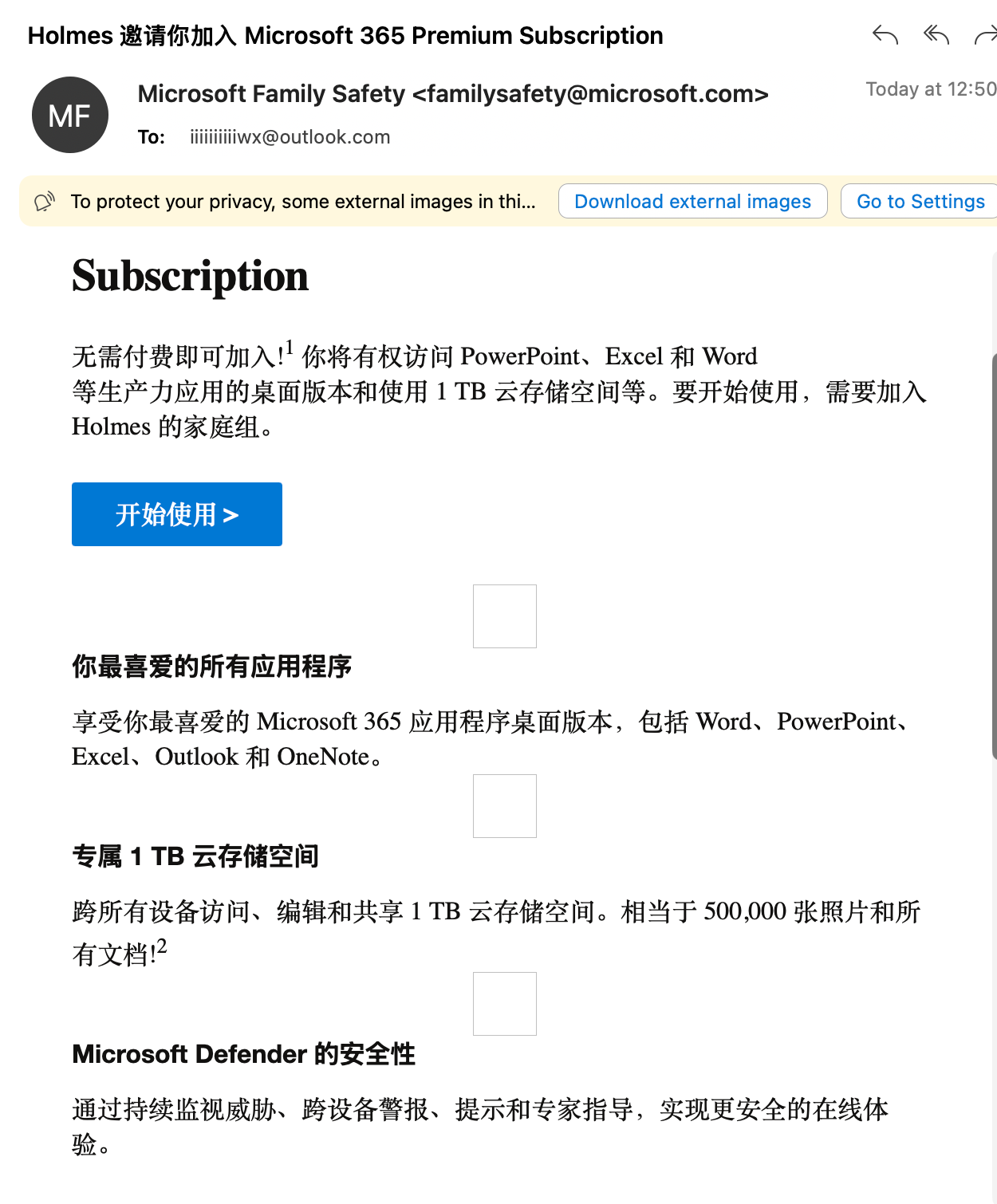
Step 2: Click “Get Started”
In the email body, you will see a prompt inviting you to join the Microsoft 365 Premium Subscription.
Please click the blue button (Get Started).
Step 3: Sign In to Your Microsoft Account
You will be redirected to the official Microsoft website. The page will prompt you to join the subscription.
Click the green “Sign in” button and enter your own Microsoft account credentials to log in.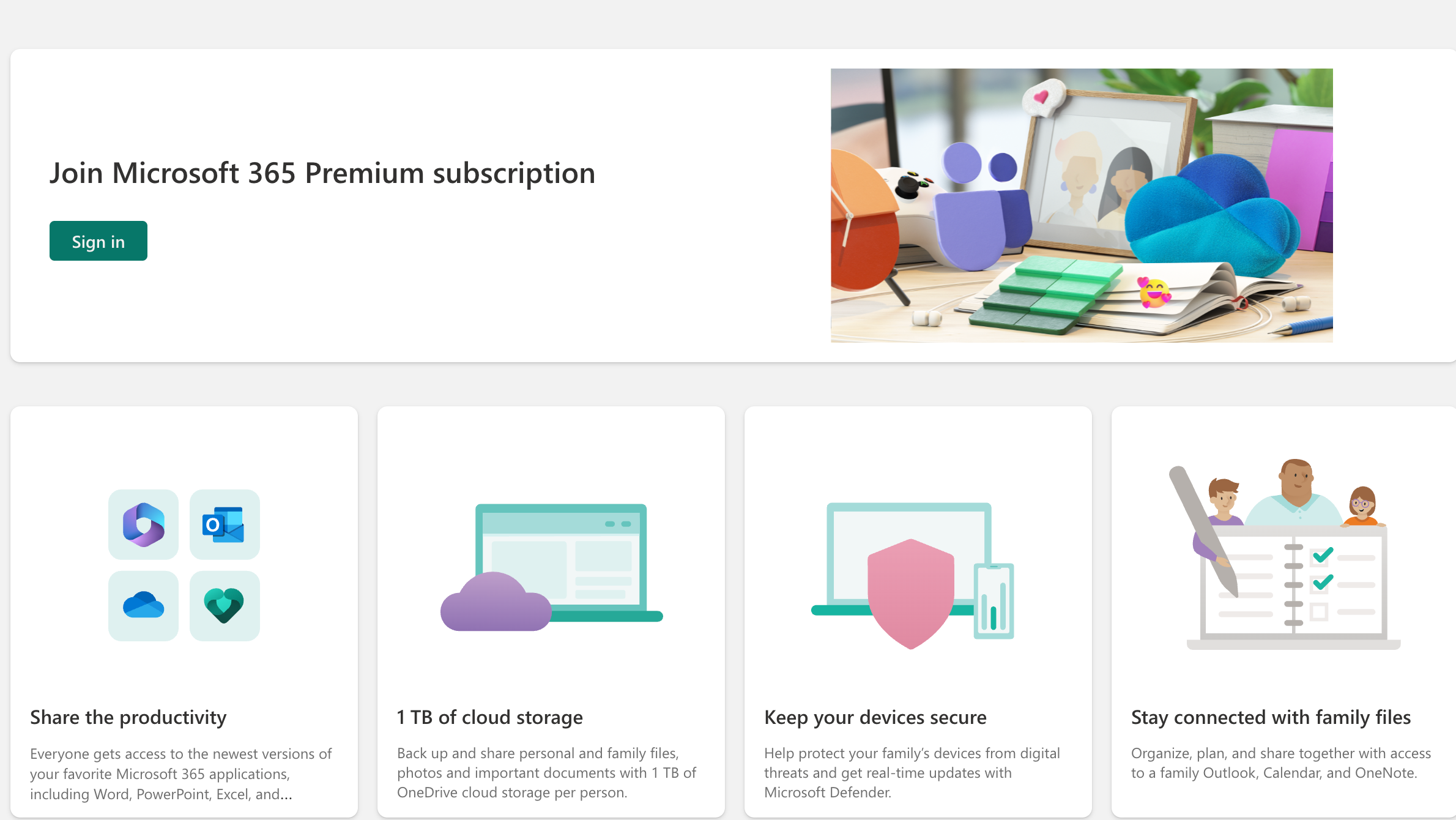
Step 4: Confirm Joining the Subscription
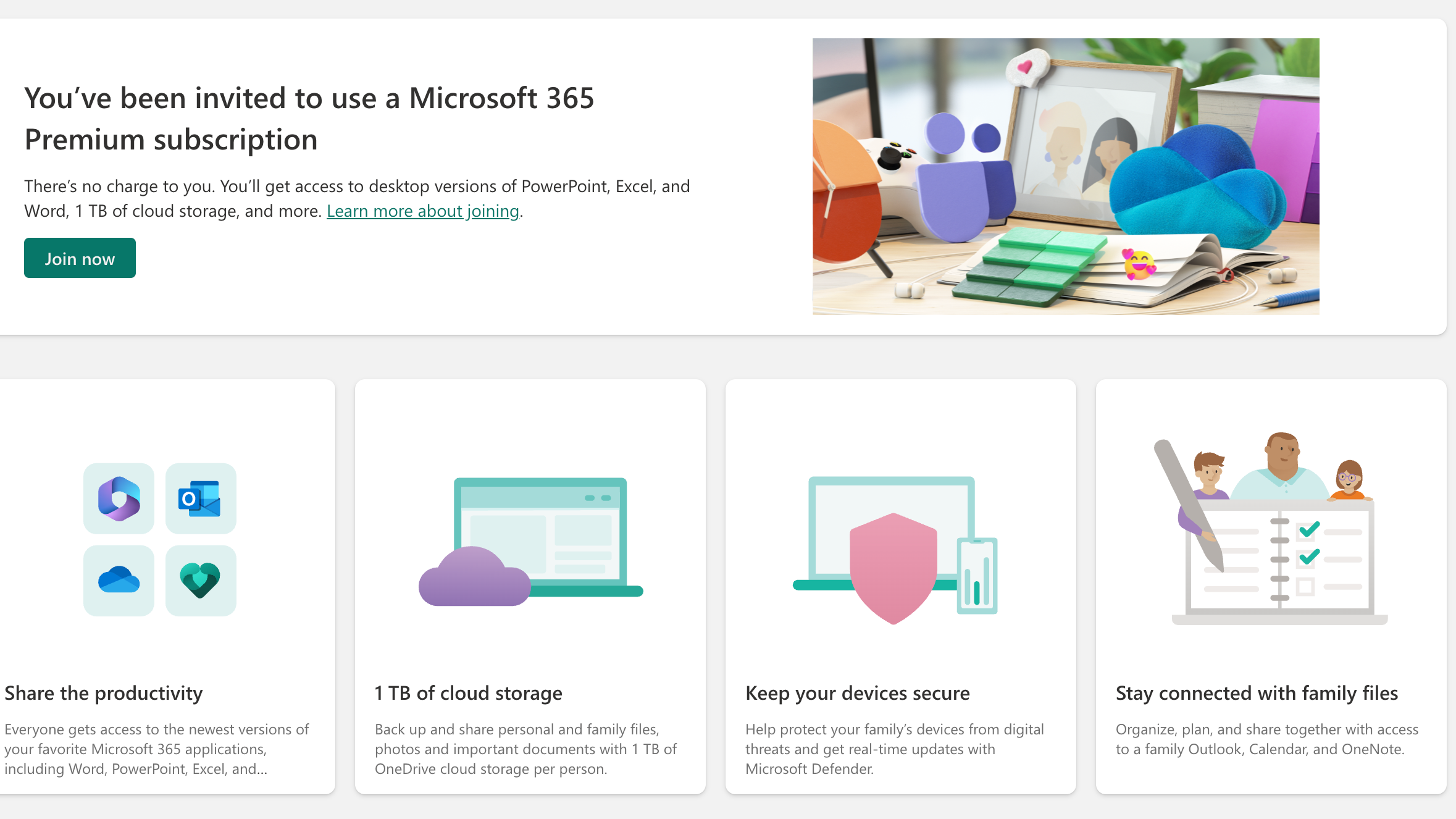
After logging in, the page will display “You’ve been invited to use a Microsoft 365 Premium subscription.”
Click the green “Join now” button to accept the invitation.
Step 5: Install Office Applications
Once you’ve joined successfully, you will be taken to your Microsoft account dashboard. Here you can see that Microsoft 365 Premium is active.
Click the “Install” button to download and install genuine Word, Excel, PowerPoint, and other apps on your computer.
Step 6: Verify Your 1TB Cloud Storage
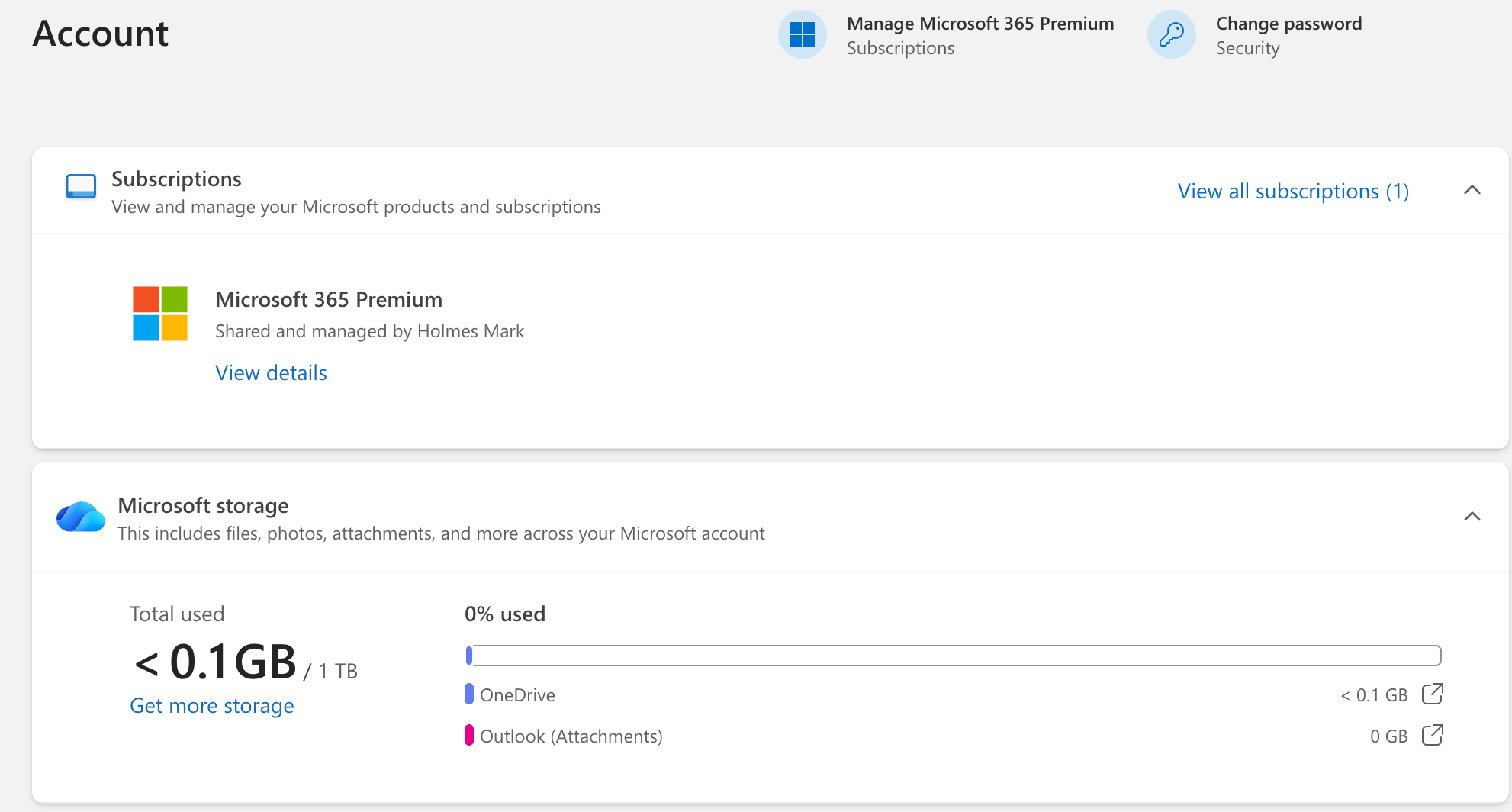
Scroll down your account overview page, and you will also see that your Microsoft storage has been successfully upgraded to 1 TB. You are now ready to start using it!
Important Notes & Troubleshooting
- Device Limits: A single Microsoft account can be logged in to use Office apps on up to 5 devices simultaneously (supports Windows / Mac / iOS / Android).
- Unable to Join: Check if you are already in a Family Group. You must leave it first to accept the new invitation.
- Storage not updated: It may take a few minutes for the 1TB storage to sync. Try refreshing the page or signing out and signing back in.